
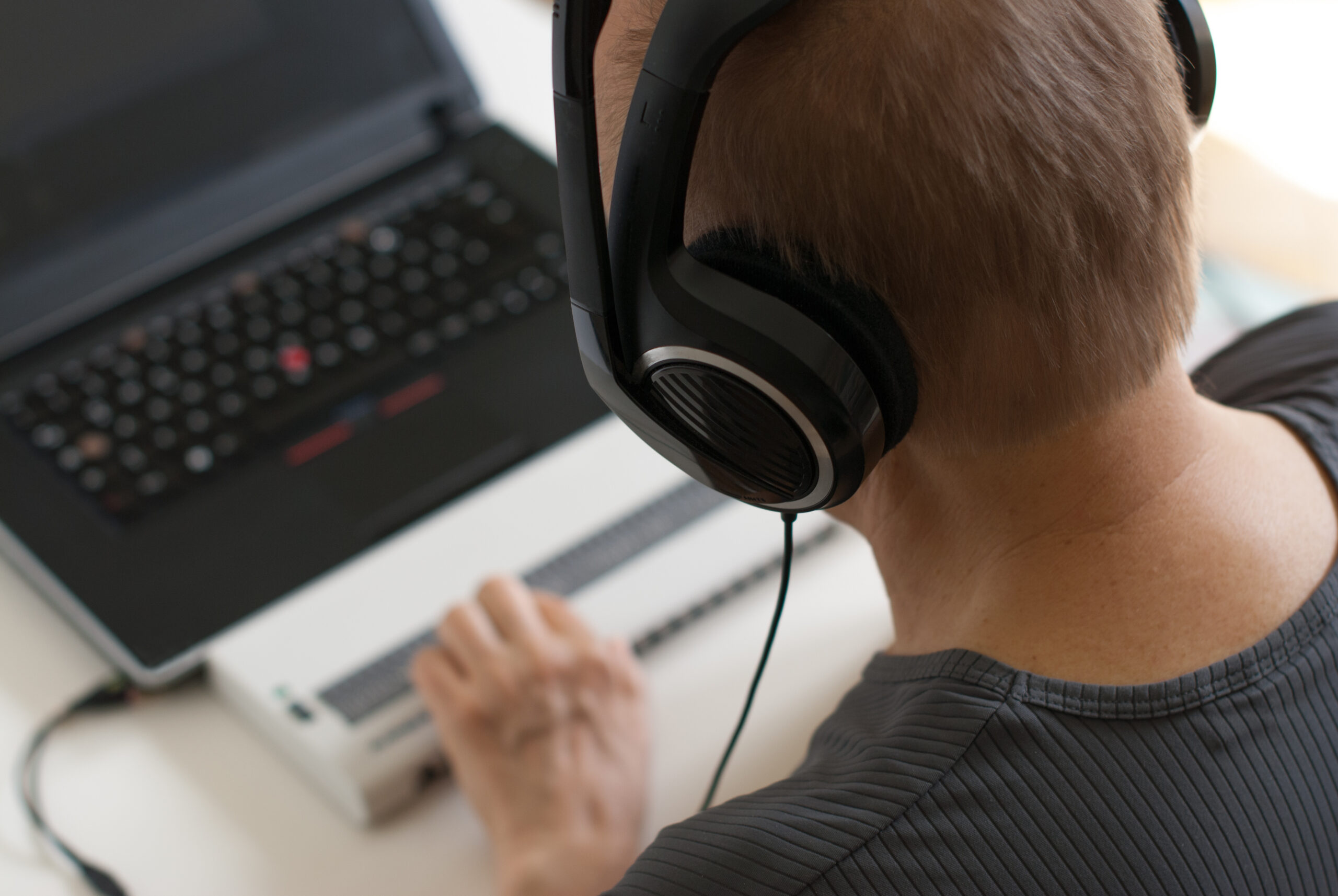
Using a Computer with Vision Loss: Your Guide to Accessible Computing
Adjusting to vision loss can make everyday tasks feel more complicated — but computing doesn’t have to be one of them. Between built-in accessibility features, screen readers, magnification tools, and specialized hardware, there are more ways than ever for people with low vision or blindness to use a computer with confidence.
Built-In Tools
Both Windows and Mac now offer strong accessibility right out of the box, so third-party software isn’t always necessary.
- Windows includes Narrator (its built-in screen reader) and Magnifier. Narrator has improved dramatically in Windows 10 and 11, and can even describe images aloud with the shortcut Narrator + Ctrl + D.
- Mac includes VoiceOver (screen reader) and Zoom (magnifier). Apple builds these as comprehensive, all-in-one solutions, so third-party alternatives are rare.
To turn them on press Windows Logo + Ctrl + Enter for Narrator, or Cmd + F5 for VoiceOver.
Screen Readers: The Basics
A screen reader converts what’s on screen into speech or braille, letting users navigate text, links, buttons, and more without seeing them.
- JAWS — The longtime industry standard for Windows, popular for advanced and workplace use, now with AI-powered screen descriptions.
- NVDA — A free, open-source Windows option with a large library of customizable add-ons.
- Narrator — Microsoft’s built-in choice, great for beginners since it requires no extra install.
- VoiceOver — Apple’s only screen reader for Mac, tightly integrated with the whole system.
Magnification for Low Vision
Screen magnifiers enlarge text and visuals for people with some remaining vision. Mac’s built-in Zoom is designed to be comprehensive, while Windows users often turn to ZoomText for more customization — or Fusion, which combines ZoomText with JAWS for both magnification and speech.
Setting Up a Comfortable Workspace
Small adjustments go a long way:
- Keep your screen about an arm’s length away and below eye level.
- Use larger text, strong contrast, and a non-glare display.
- Reduce blue light in the evening to ease eye strain.
- Keep your desktop and files simple and organized.
The Bottom Line
Whether you choose Windows or Mac, free or paid tools, software or hardware, there’s an accessible path to using a computer that fits your needs. The right combination comes down to your personal vision, comfort, and the tasks you do most.
Are you or a loved one suffering from vision loss?
Fill out the form below and someone will be in touch.